Private, deliberate QR inspection

QR Code & Barcode Decoder

Decode up to 10 QR codes and common barcodes from a single upload, screenshot, image URL, camera frame, or built-in example without uploading the image. Auto detection identifies each format, while optional QR-only and barcode-only modes narrow the scan.

QR & barcode detectionLocal image processingPrivate link resolution
01 / Decode

Choose how to scan

Provide an image containing one or more QR codes or barcodes using the method that fits your situation. The same private decoding pipeline handles every option.

Images are processed locally and are never uploaded. Decoded web links are not sent to a redirect resolver. Final destination resolution is disabled. Links in multi-code results remain unchecked until you choose an action.

Code type

Upload an image

Drop an image here or click to browse PNG, JPG, GIF, WebP, HEIC/HEIF, or another browser-supported image
Decoded results

02 / History

Last 10 scans

No scans yet. Your last 10 scans (decoded or captured from unresolved attempts) will appear here.

Processing image

0%

Preparing image…

URL actions

QR / barcode image

How to decode a QR code or barcode

Choose Auto detect, QR only, or Barcode only, then upload an image, paste a screenshot, enter a public image URL, scan with your camera, or try a built-in example. The decoder returns up to 10 distinct codes from one image or camera frame. For the most reliable results, keep every code complete, sharp, and surrounded by a clear border.

Scan QR codes using your camera

Use this online QR scanner as a browser-based QR scanner or webcam QR code scanner—no app installation is required. Choose Camera, allow camera access, and hold the complete code inside the guide. The scanner can detect up to 10 QR codes or supported barcodes in a camera frame.

The camera scanner uses the browser’s MediaDevices API to request a video stream, captures selected frames onto a local canvas, and sends their pixels through the same private decoding pipeline used for uploaded images. Camera frames are not uploaded or stored, and the stream stops when scanning ends, another input method is selected, or you leave the page.

It works with compatible desktop webcams and front- or rear-facing mobile cameras. Camera access requires a secure HTTPS page, a supported browser, and your permission.

Supported input methods

What QR code content can this decoder read?

The decoder identifies common QR payload formats and presents their values as labeled fields while keeping the original decoded text available.

Why your QR code won’t scan

A QR code can look readable to a person while still hiding the visual structure a scanner needs. Check these common problems before replacing or regenerating the code.

Low contrast

The dark and light modules must be easy to distinguish. Pale foreground colors, transparent backgrounds, gradients, glare, and dark-on-dark designs can erase that separation. Use a dark code on a plain light background and avoid reflections.

Missing quiet zone

The empty border around a standard QR code should be at least four modules wide. Cropping, nearby text, or a decorative frame can make the scanner treat surrounding content as part of the symbol. Restore a clean, light margin on every side.

Blurry or low-resolution image

Motion blur, camera focus, heavy JPEG compression, or aggressive resizing can merge neighboring squares. Use the original PNG or SVG, move closer, steady the camera, and focus before scanning.

Overly large logo

A centered logo covers data modules. Error correction can recover a limited amount, but a large logo—or one placed over a finder pattern—can exceed that capacity. Shrink the logo, add a clear backing, and test at the final printed size.

Damaged finder patterns

The three large squares in the top-left, top-right, and bottom-left corners tell a scanner where the QR code begins and how it is oriented. Tears, folds, stickers, logos, or decorative edits over these squares often prevent detection. Keep all three patterns complete and unobstructed.

Excessive rotation or perspective

Rotation alone is usually recoverable, but a steep camera angle turns the square into a distorted quadrilateral and changes module sizes across the image. Hold the camera parallel to the code, center it, and include the full border.

How QR code decoding works

This decoder turns an uploaded image, screenshot, URL image, or camera frame into a verified payload through five local processing stages.

  1. Canvas extraction

    The browser draws the source onto a hidden HTML canvas and reads its RGBA pixel data with getImageData(). Camera scanning repeats the same operation on selected video frames. Those pixels remain in the browser and are passed to the native Barcode Detector, Rust/WebAssembly QR engine, and ZXing/WebAssembly fallback.

  2. Finder pattern detection

    The QR locator searches the light-and-dark image for the three large corner targets and their characteristic 1:1:3:1:1 stripe ratio. Their centers establish the code’s position, orientation, scale, and perspective; larger versions may also use alignment patterns to refine the geometry.

  3. Module grid reconstruction

    The detected quadrilateral is mapped back to a square grid of modules. A standard QR code contains 21 × 21 modules at version 1 and adds four modules per side for each version through version 40. Normalization passes resample difficult images at candidate grid sizes to reduce blur, rotation, and perspective distortion.

  4. Error-correction decoding

    Format bits identify the mask and error-correction level—L, M, Q, or H. After the mask is removed, Reed–Solomon error correction uses redundant codewords to detect and recover a limited amount of missing or damaged data. Recovery depends on the selected level and where the damage occurs.

  5. Data segment parsing

    The corrected bitstream is divided into Numeric, Alphanumeric, Byte, Kanji, ECI, and other QR segments. Their bytes become decoded text, then this page recognizes common payload conventions such as URLs, Wi‑Fi credentials, email, SMS, vCard, MeCard, calendar events, phone numbers, and geo coordinates.

Technical background: jsQR documents its raw RGBA input, finder-pattern locations, extracted bytes, chunks, and version; html5-qrcode demonstrates browser camera, image, canvas, and Barcode Detector integration. MonkeyTactics uses its own Rust and ZXing WebAssembly pipeline rather than embedding either library.

What QR and barcode formats are supported?

QR CodesBarcodes
  • QR CodeExample QR Code symbol
  • Micro QR CodeExample Micro QR Code symbol
  • Rectangular Micro QR Code (rMQR)Example rectangular Micro QR Code symbol
  • AztecExample Aztec barcode
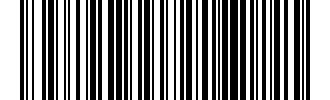
  • CodabarExample Codabar barcode
  • Code 39Example Code 39 barcode
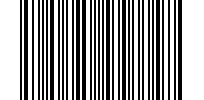
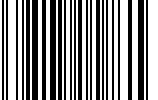
  • Code 93Example Code 93 barcode
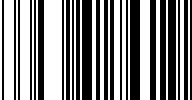
  • Code 128Example Code 128 barcode
  • DataBarExample DataBar barcode
  • DataBar ExpandedExample DataBar Expanded barcode
  • DataBar LimitedExample DataBar Limited barcode
  • Data MatrixExample Data Matrix barcode
  • DX Film EdgeExample DX Film Edge barcode
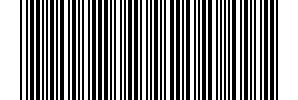
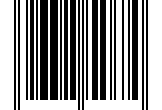
  • EAN-8Example EAN-8 barcode
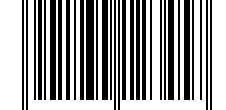
  • EAN-13Example EAN-13 barcode
  • ITFExample ITF barcode
  • MaxiCodeExample MaxiCode barcode
  • PDF417Example PDF417 barcode
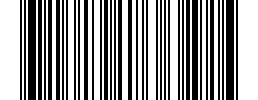
  • UPC-AExample UPC-A barcode
  • UPC-EExample UPC-E barcode

Local QR image scanning with private link resolution

This free QR code reader performs decoding locally with Rust/WebAssembly, the browser Barcode Detector when available, and a local ZXing/WebAssembly fallback. Uploaded files, pasted screenshots, and camera frames are not uploaded to MonkeyTactics or stored by this utility.

Decoded website addresses stay in your browser until you choose an action. Automatic redirect and final destination resolution is disabled. Review the decoded URL before opening it. You can optionally check a link using VirusTotal before visiting it.

Is This QR Code Safe?

Safety Notice: This tool will never open or navigate to a decoded link automatically. Final destination resolution is disabled; links in multi-code results remain unchecked until you choose an action. Review unfamiliar destinations before choosing to open them.

Frequently Asked Questions

  • How do I decode a QR code from an image?

    Upload or drag an image into the decoder, paste a screenshot, or enter a public image URL. The tool scans the image locally and displays up to 10 detected QR codes and barcodes together.

  • Can I scan a QR code with my computer camera?

    Yes. Choose Auto detect, QR only, or Barcode only, allow camera access, and keep one or more complete codes visible in the mode-aware camera guide. The decoder captures up to 10 detected codes from the frame. Camera access requires HTTPS or a localhost address and may be disabled by managed browser policies.

  • Does the QR scanner work on mobile devices?

    Yes. Open the decoder in a modern mobile browser, choose Camera, grant camera permission, and point the device at one or more QR codes. You can also upload or paste an image when those options are supported by your device.

  • Is browser camera scanning private?

    Yes. Camera frames are processed locally in your browser and are not uploaded to MonkeyTactics or stored by the decoder. The camera stream stops when you stop scanning, switch input methods, leave the page, or successfully decode a frame.

  • Which QR code and barcode formats are supported?

    The supported-formats table above lists every available QR and barcode format. Auto mode checks both columns; QR only and Barcode only restrict detection to their corresponding column. The detected format appears with the result.

  • Are my QR code images uploaded or stored?

    No. Uploaded, pasted, and camera images are decoded locally in your browser. They are not sent to MonkeyTactics or stored by this tool.

  • Why can’t the decoder find my QR code?

    The image may be blurry, cropped, too dark, distorted, or too low resolution. Try a sharper image that shows the entire code and the light-colored border around it.

  • Why won’t an image URL load?

    The remote image host must permit cross-origin browser access (CORS). If it does not, save the image to your device and use the upload option instead.

  • How can I check whether a decoded QR link is safe?

    Decoded web links are not resolved or opened automatically. Select Check Link Safely to open the decoded URL's VirusTotal analysis page. Review unfamiliar destinations before visiting them or entering personal information.

  • What image formats does the QR decoder support?

    It supports common formats your browser can read, including PNG, JPEG, GIF, and WebP. PNG or a high-quality JPEG usually produces the most reliable scan.

Was this tool helpful?

Help others discover useful tools — leave a review on Trustpilot.

Review MonkeyTactics on Trustpilot